

Start here
The app
On this page
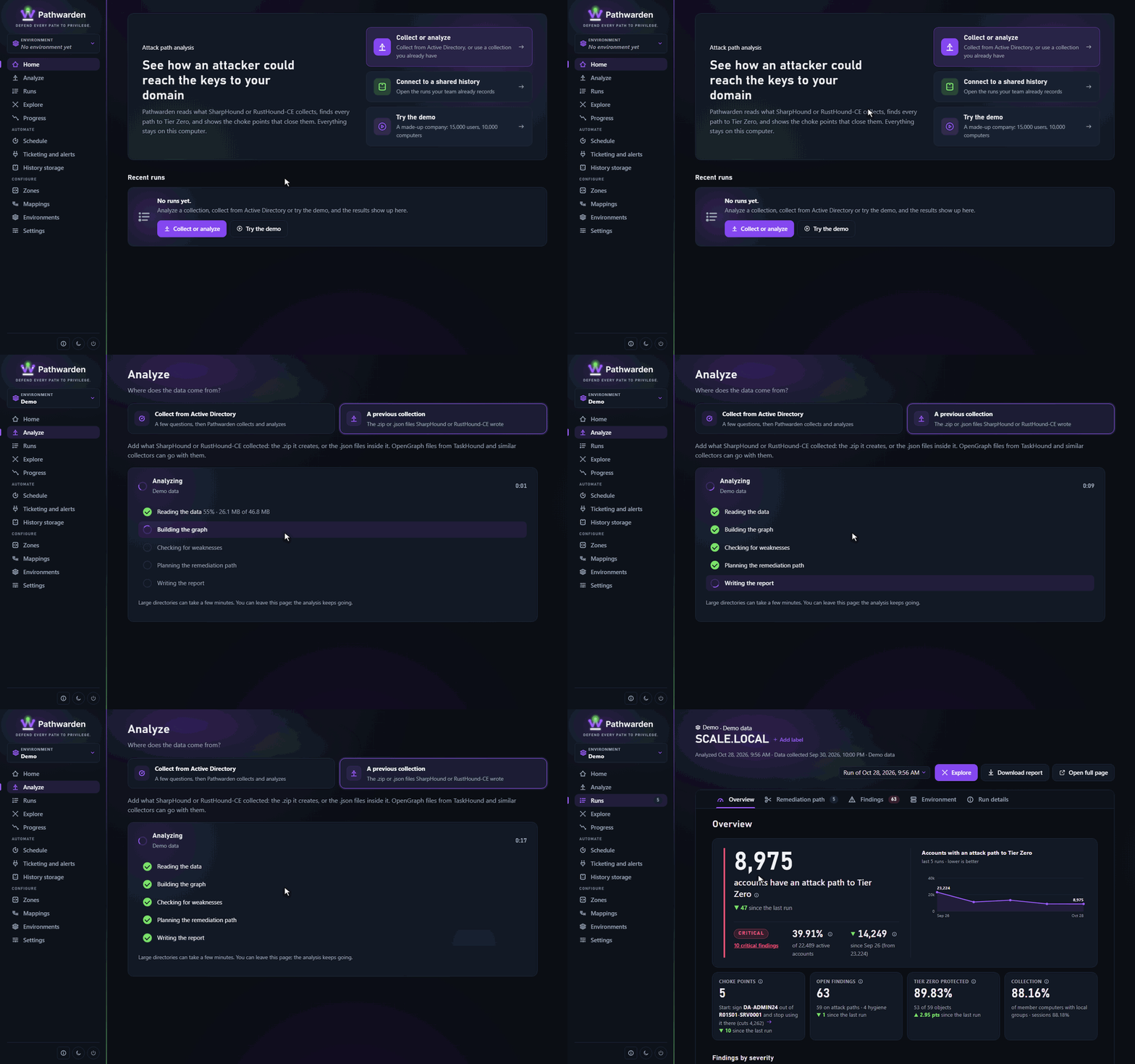
The app runs the same analysis as the command line, in a window. Step-by-step tasks are in Tasks, step by step.
Open the app
pathwarden uiThe app opens in its own window, or in a browser with a link that works
once; press Enter in the Pathwarden window for a new one. In a browser,
click Stop Pathwarden at the bottom of the rail when you are done. The
app listens on 127.0.0.1 only. pathwarden ui --help lists the options.
The desktop window
The Windows full release opens a native window with no network port. It
needs the WebView2 Runtime, which Windows 11 includes. On Windows Server,
install it (winget install Microsoft.EdgeWebView2Runtime) and run
pathwarden ui --window. Closing the window stops Pathwarden.
Environments
An environment is a set of domains with its own settings, run history and schedule. Accepted risks, zones and rules never cross between environments.
- Switch with the menu at the top of the rail.
- The first collection of a new domain makes an environment for it. A run goes to the environment that lists its domains. When two match, the page asks "Where should this run go?".
- Change domains or remove › Remove environment… moves its files to
environments/removed/. Remove its schedule on the server yourself.
Analyze or collect
Click Analyze in the rail, then A previous collection (drop a
SharpHound or RustHound-CE .zip) or Collect from Active Directory. One
job runs at a time; Home links back to it.
The Collect wizard
- Where: the domain and its domain controller. Trusted domains adds other domains to the run.
- Who: Use my Windows account or Enter a user and password (needs Encrypt with LDAPS (port 636)). Leave Kerberos only and Require SMB signing on.
- How deep: Quick reads the directory only. Full adds sessions and local groups from every computer.
- Check: a connection check. A failure says which screen to fix.
- Collect: Start collecting. Keep the raw collection keeps the files; Analyze other data with it adds AzureHound or OpenGraph files.
What each choice reads: Collecting Active Directory data.
Read the results
| Page | What it is for |
|---|---|
| Home | The latest run's status, what changed and the next step. |
| Runs | Every run, newest first. |
| A run's page | The report: Overview, Remediation path, Findings, Collection and Run details. |
| Explore | The run's graph. |
| Progress | How the environment changes from run to run. |
Above the report, Download gives the report, a findings file or an evidence pack.
Exploring a run
Explore opens on the run's first finding. Previous and Next page through the findings. Search for an object and double-click it to expand it. Path to Tier Zero draws its shortest path, Who can reach this lists everything with a path to it, and Query runs Prepared queries or your own Cypher. Suggested zones proposes Tier 1 and Tier 2 objects for a zone.
Configure
Settings (Tier Zero additions, Rules, Accepted risks), Zones
and Mappings (OpenGraph data (TaskHound, MSSQLHound, ...)) edit the environment's
pathwarden.toml. Changes apply from the next analysis.
Act on a finding
Actions on a finding
A finding's action bar has Retest, Accept risk (a Reason and an optional Review by date), Add a note, Open in Explore and Copy ID. After the review date an accepted risk counts as open again. A downloaded report has no actions.
Retesting a finding
Make the change, then:
- On the run page, click Retest on the finding's row.
- Sign in as in the Collect wizard.
- Click Retest now.
The row shows Fixed ✓, Still open or Can't tell. A retest re-reads only the finding's objects and the computers on its path, so it can't find a new path around them. The next collection checks everything.
Automate
Schedule writes the files for a nightly run on a server; an administrator copies them and runs the commands shown (Schedule nightly runs). The page then shows the last scheduled run and says when it is late.
Ticketing and alerts sends results to ServiceNow, Jira or a script. ServiceNow and Jira each have a form, with Safety limits on how many tickets one run may open or close. Give the name of an environment variable for each secret, never the secret.
History storage
History storage sets where the run history lives. The app and the command line record into the same one.
| Choice | When to use it |
|---|---|
| On this computer | You work alone. |
| Connect to a run history | A teammate or a server already records one. |
| Start a new run history | You want to share runs through a folder or git. |
What the history keeps is Numbers with names (the default) or Full runs and settings. Encrypt the history with a passphrase is optional. Sync now syncs at once.
Connect to a run history
- Where is it?: the repository URL and branch, or a shared folder. Click Look at it. Never put a password in the URL.
- What it holds: for an encrypted history, enter the passphrase.
- Open and sync: name the environment, choose Push runs from this computer or Read only, and click Connect and sync.
Where your data goes
Everything stays in the workspace, private to your account:
%LOCALAPPDATA%\Pathwarden on Windows, ~/.local/share/pathwarden on
Linux. Uploads are deleted after the analysis. Passwords are never saved.
The app connects only to your domain controllers, the computers a Full
collection or retest reads, and a git history's repository.
When something goes wrong
| Problem | Fix |
|---|---|
| The link has expired. | Press Enter in the Pathwarden window for a new one. |
| The Check step fails. | Read the reason and fix that screen. |
| A retest says Can't tell. | Retest as a local admin on the computers it names, or collect again. |
| "Not signed in to the repository". | On History storage, click Sign in. |
| "Couldn't sync with the repository". | Check the network, then click Sync now. |
| "This page is out of date: reload it." | Reload and make the change again. |
| A run went to the wrong environment. | Fix the domain lists on Environments. |
Generated from docs/ui.md in the Pathwarden repository, version 1.0.0-rc.1.